 15- How to install DecoTech
version 6 on a network in order to share the data files.
15- How to install DecoTech
version 6 on a network in order to share the data files.
NOTE:
On the Windows 7 and Vista operating systems, you must
install the DecoTech version 6.09 (or higher) software. It
should be installed in the "C:\DDS Inc\DecoTech\"
folder, but one thing for sure, it should never be
installed in the "C:\Program Files\" folder.
DecoTech version 6 is not a client/server application.
However, you can share the same data files thru a network but there is no testing for collisions (if the same file is opened for edit by more that one person at a time).
To install a shared DecoTech version 6
on a network, simply install it on the server computer, then make shortcuts on each client computer to point to
a mapped letter specifying the folder where the DecoTech folder is located
(and not the DecoTech folder directly).
Also, if you are running DecoTech Pro, each client computer must have an hardlock connected locally and you will need to run the
"....\bin\Hardlock\Driver\_install.bat" file on each client computer to install the hardlock driver locally.
(Note: For DecoTech Pro v6.09 or higher, run
the "....\bin\Hasp-HL Driver\_install.bat" file instead.)
An example will clarify everything:
1- Install the DecoTech software on the server computer in the "C:\DDS Inc\" folder for a final path equals to
"C:\DDS Inc\DecoTech\".
2- Share the "C:\DDS Inc\" folder to be able to access it from each client computer.
3- On each client computer map a network drive with the letter "Z" (or another one) to the server shared folder.
4- (Required only for DecoTech Pro) Run the "Z:\DecoTech\bin\Hardlock\Driver\_install.bat" file on each client computer.
(Note: For DecoTech Pro v6.09 or higher, run the
"....\bin\Hasp-HL Driver\_install.bat" file instead.)
5- Create all the needed shortcuts on each client computer.
To know which ones, take a look on the server computer, the default
shortcuts have been created there during the installation.
6- Now each client computer will load and save the data files from/to the DecoTech folder located in the server hard disk.
If your DecoTech version is greater or equal to 6.01, you can also do the
following:
NOTE :
If your current version is 6.06 then first download and install
the version 6.11 update in order to fix a bug accidentally introduced
in version 6.06. You can find the appropriated download webpage directly from the bottom of the
main Tech Support webpage.
1- Run the DecoTech Configurator (dtconfig.exe)
application located in the "....\DecoTech\bin\"
folder.
2- Select the Use
a customized folder for the DecoTech print preferences
files check mark button as shown below (and
optionally specify a different folder than the default one by using the Browse...
button).
3- Select the Save
and Quit button and accept the confirmation.
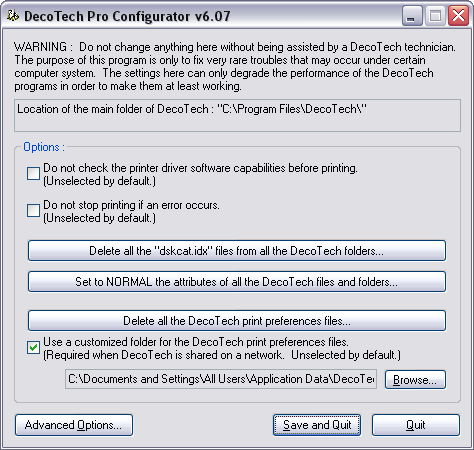
By doing this, each client computer
will be able to have their own print preferences. This is a must
especially when your are using more than one kind of printer over a
local area network.

|
